Step 1
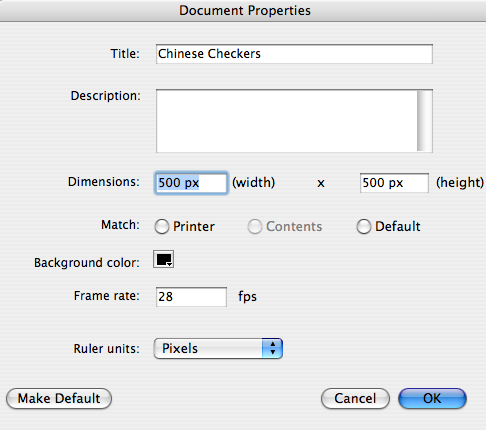
Create a new flash document by choosing File-New... Flash File (ActionScript 2.0) from the Flash menu bar. Press Command+J key on the keyboard (Document Properties) and set the width of your document to 500 pixels and the height to 500 pixels. Select black as the background color. Set your Flash movie's frame rate to 28 frames per second and click OK. See the board below.
Step 2
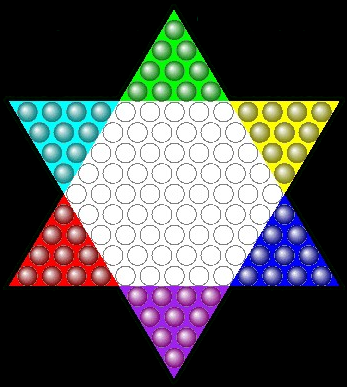
Save the Chinese Checkers board below in preparation of importing a file to your project.
Step 3
Go back into a flash stage. Choose file > Import > Import to stage (Shortcut key: Command+R) and import the into a flash stage.
Step 4
While the photo is still selected, press F8 key (Convert to Symbol) to convert this photo into a Movie Clip Symbol. Name your board ccboard.
Step 5
While the new made movie clip is still selected, go to the Align Panel (Command+K) and do the following:
1. Make sure that the Align/Distribute to Stage button is turned on,
2. Click on the Align horizontal center button and
3. Click the Align vertical center button.

Step 6

Step 7
Go back now on the main scene (rename Layer 1 main in the upper-left of the timeline panel by opening a short-cut menu and choosing Properites to change the name property), click on the first frame with your right mouse button (or Command-click if you only have one button). In the pop-up menu, choose the Action menu item at the bottom to go to the Action Script Panel. Enter the following code inside the actions panel:
init();
function init(){
}
_root.onMouseUp = function(){
//move the marble
marble._x=_root._xmouse;
marble._y=_root._ymouse;
} // end mouseUp

Repeat the necessary steps to import the black marble image above. Create a symbol named Marble to make the marble available as an actor in your game.
Select the Marble symbol in your symbol Library so you can see it active on the stage.
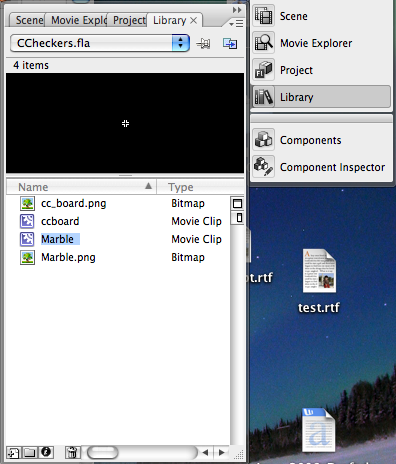
Now go back to Scene 1 and select the marble on the Stage. From the Window menu on the menu bar, choose Properties.
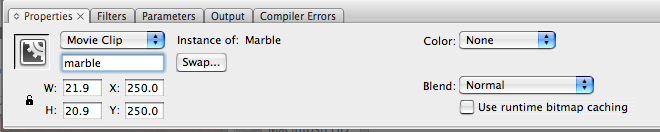
Change the instance name property of the marble to marble in order for it to be available to your ActionScript code as marble.
Publish your game and click on the board to see your marble move to wherever you click.
It should work like this: